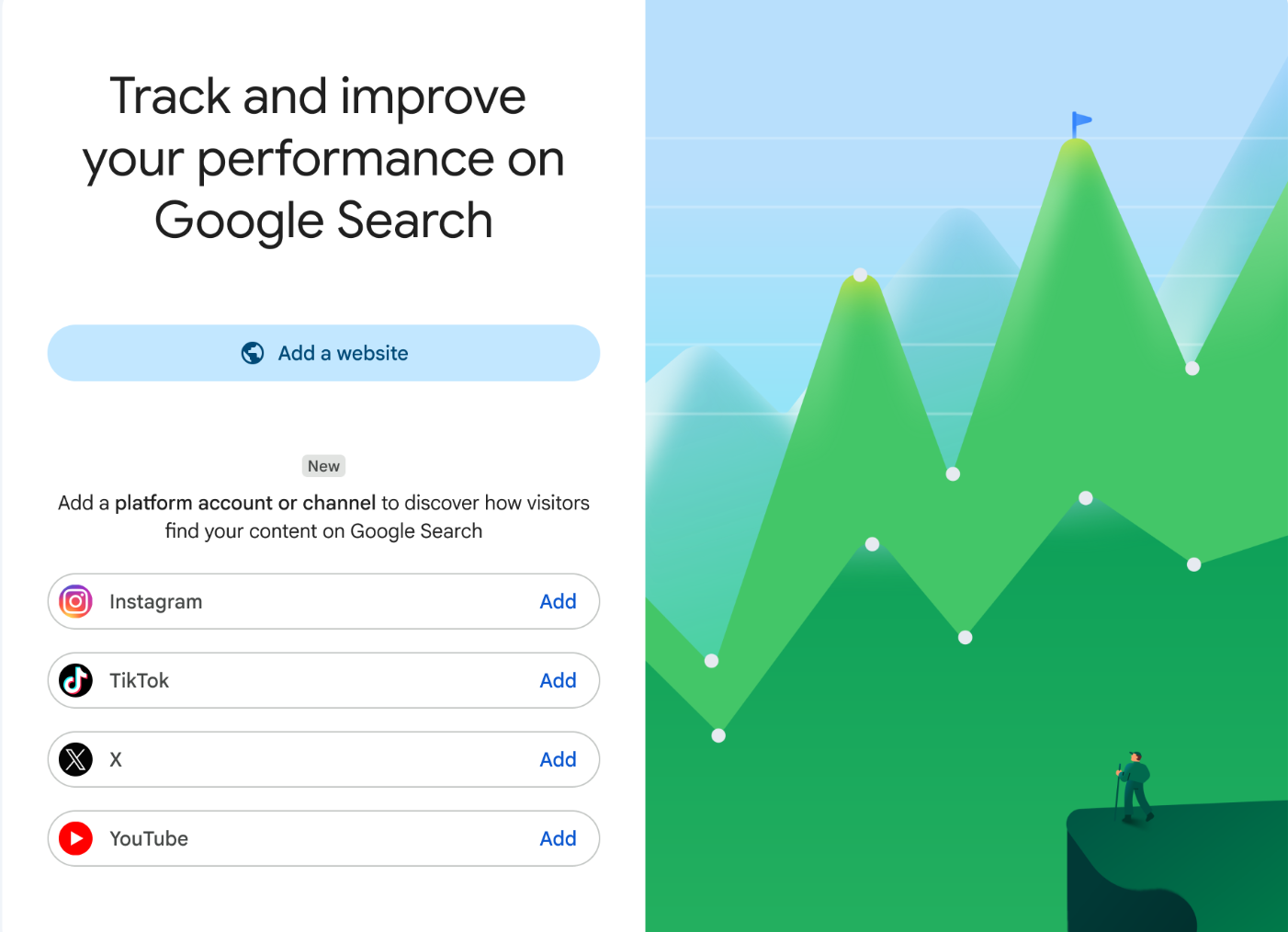


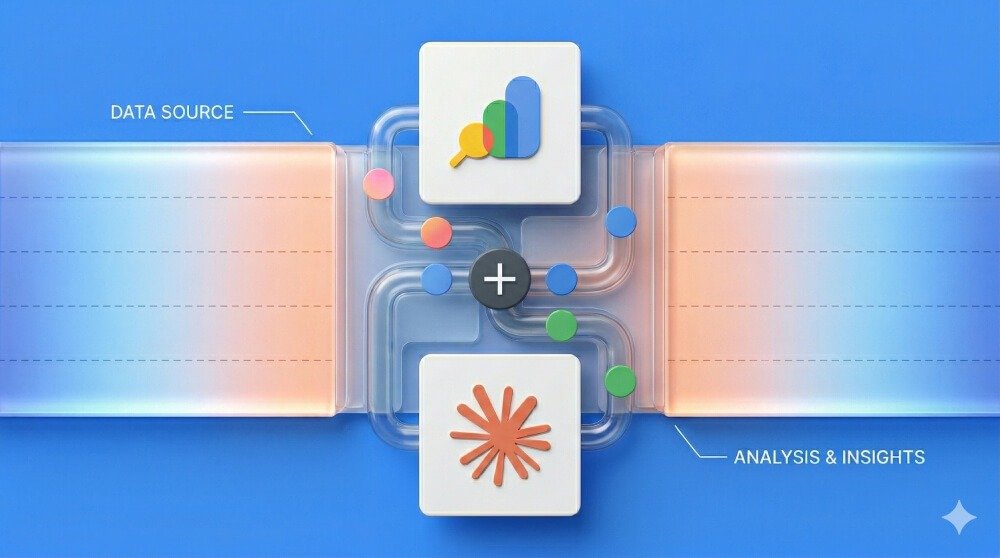
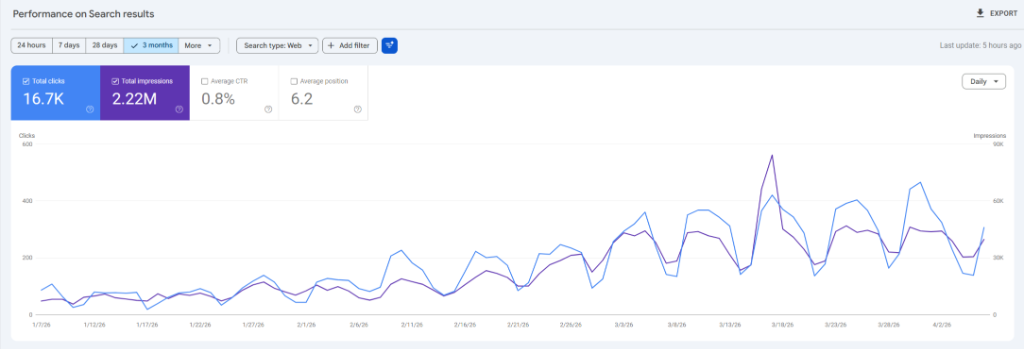
You already know Google Search Console is gold. Clicks, impressions, average position, CTR — it is the raw, unfiltered data feed from Google itself. The problem has never been the data. The problem has always been the time it takes to make sense of it. Downloading CSVs, pivot-tabling in Excel at 11pm, wondering why your best blog post dropped three positions last Tuesday — that is the reality for most SEO practitioners in 2026.
What if that entire workflow collapsed into a single conversation?
In this guide, I will show you exactly how to connect Google Search Console to Claude AI — the AI assistant built by Anthropic — so you can ask it direct questions about your rankings, diagnose indexing failures, find striking-distance keywords, and generate actionable SEO recommendations in seconds. I cover three distinct methods: the no-code approach using Windsor.ai MCP, the developer approach using Composio's MCP SDK with Python, and the manual CSV fallback for people who just want to test the concept for free right now.
By the end, you will have a live, working integration and 10 SEO prompts you can copy-paste immediately.
What Is MCP, and Why Does It Change Everything for SEO?
Model Context Protocol (MCP) Explained Simply
MCP stands for Model Context Protocol — an open standard introduced by Anthropic in late 2024 that lets AI assistants like Claude connect directly to external tools, databases, and APIs in real time. Think of it as a secure "live wire" between Claude's reasoning engine and the tools your business already uses.
Before MCP, getting your data into Claude meant: exporting a file, cleaning it, uploading it, writing a long prompt explaining the column names, and hoping Claude understood the context. That process breaks down at scale — Google Search Console's standard export is capped at 1,000 rows, which misses the vast majority of long-tail keyword data on any site with more than a few hundred pages.
With MCP, Claude connects directly to the Google Search Console API. No exports. No row limits. No stale snapshots. You get live, unsampled data responding to natural language questions in real time.
Why Google Search Console + Claude AI Is the Most Powerful SEO Stack Available
Claude is not a generic chatbot. It is a research-grade reasoning engine with a context window large enough to process thousands of keywords, analyze patterns across your entire site architecture, and produce structured recommendations that would take a human SEO analyst hours. When you give it live access to your actual Google Search Console data, you have essentially hired a senior SEO analyst who works 24/7, never gets tired, and charges nothing per hour.
The use cases are genuinely transformative: finding every page stuck on page two with high impression counts, identifying keyword cannibalization across your blog, diagnosing why specific URLs are not being indexed, auditing your entire sitemap status, and modeling which content investments will yield the fastest ranking improvement. None of this requires a developer once the connection is live.
Method 1: Connect GSC to Claude Using Windsor.ai MCP (No-Code, Recommended)
This is the method I recommend for most US business owners, marketing teams, and freelancers. Windsor.ai is a data integration platform that handles OAuth authentication, API rate limits, and data normalization so you do not have to. The connection takes approximately five minutes once you have your accounts ready.
What You Need Before Starting
- A Google account with at least one verified property in Google Search Console
- A Windsor.ai account (free tier available at onboard.windsor.ai)
- A Claude account (Claude.ai — free tier works, Pro recommended for longer conversations)
Step 1: Connect Google Search Console to Windsor.ai
Log in to your Windsor.ai account and navigate to the data source selection screen. Click Google Search Console from the list of available connectors.
Windsor will prompt you to authorize your Google account via OAuth. This is a standard read-only authorization — Windsor cannot modify your GSC settings, delete sitemaps, or change any configuration. It can only read your search analytics data.
After authorizing, select the specific GSC property (website) you want to analyze. If you manage multiple sites, you can connect them all and switch between them in Claude later.
What Windsor is doing behind the scenes: normalizing your GSC API data (queries, pages, countries, devices, search appearance) into a structured format that Claude can query directly. This normalization step is what makes the downstream prompts so reliable.
Step 2: Add the Windsor Connector Inside Claude
Open Claude at claude.ai. Click on your profile icon in the top right corner and navigate to Settings → Connectors (this may also appear as "Customize" in some versions of the interface).
In the connector search bar, type "Windsor.ai" and click the plus (+) button next to it when it appears in the results.
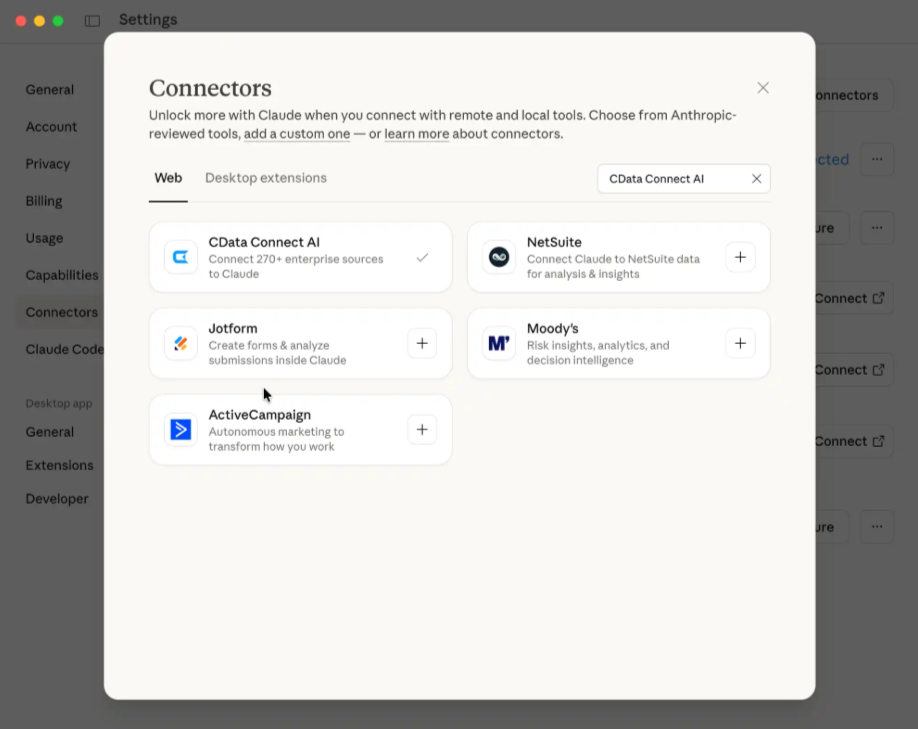
Follow the authorization flow to link your Windsor account to Claude. This creates a secure, encrypted tunnel between Claude's reasoning engine and your Windsor data pipeline — which in turn connects to your Google Search Console API.
Pro tip: When prompted about permissions, select "Always allow" for the Windsor connector. This lets Claude automatically pull your live search data during any conversation without requiring you to manually re-authorize each session. For any team doing regular SEO work, this setting is essential.
Step 3: Test the Connection with Your First Query
Open a new Claude chat and paste this exact prompt:
Using the Windsor connector, show me my top 10 queries by impressions over the last 30 days, including their average position and CTR. Format the output as a table.If the connection is working, Claude will pull your live GSC data and present a ranked table in seconds. That table alone — combined with Claude's ability to comment on what it sees — tells you more than 20 minutes of manual GSC navigation would.
Why Windsor.ai Rather Than DIY MCP?
The DIY alternative (running your own GSC MCP server locally using Python) requires installing Node.js or Python, configuring Google OAuth credentials, managing token refresh logic, and keeping the server running continuously. Windsor handles all of that for you. For non-developers and busy marketing teams, the saved time and removed complexity are worth far more than the free tier's limitations.
Method 2: Google Search Console MCP with Claude Code (Developer Setup via Composio)
If you are a developer, or if you want to build a programmatic workflow — for example, a weekly automated SEO report that emails your team every Monday — this method gives you full control. It uses Composio's MCP SDK and Claude Code, Anthropic's terminal-based AI coding agent.
What You Need
- Python 3.8+ installed
- Claude Code installed (Claude Pro, Max, or API billing required)
- A Composio account and API key from platform.composio.dev
- A Google Search Console account
Step 1: Install Claude Code
Claude Code is Anthropic's official terminal-based AI agent. Install it with the appropriate command for your operating system:
# macOS or Linux:
curl -fsSL https:class=class="cd-str">"cd-cmt">//claude.ai/install.sh | bash

# Windows PowerShell:
irm https:class=class="cd-str">"cd-cmt">//claude.ai/install.ps1 | iexAfter installation, run claude in your terminal to open the interactive session. Follow the prompts to sign in with your Anthropic account and complete authentication.
Step 2: Install Composio and Set Up Environment Variables
In your project directory, install the Composio core library:
pip install composio-core python-dotenvCreate a .env file in your project root with the following two variables:
COMPOSIO_API_KEY=your_composio_api_key_here
USER_ID=your_unique_user_identifierYou will find your Composio API key in the dashboard at platform.composio.dev after creating a free account. The USER_ID can be any unique string — your email address or a UUID both work.
Step 3: Generate the MCP URL
Create a new Python file called generate_mcp_url.py and paste in the following complete script:
import os
from composio import Composio
from dotenv import load_dotenv

load_dotenv()

COMPOSIO_API_KEY = os.getenv(class="cd-str">"COMPOSIO_API_KEY")
USER_ID = os.getenv(class="cd-str">"USER_ID")

# Initialize the Composio client
composio_client = Composio(api_key=COMPOSIO_API_KEY)

# Create a Tool Router session for Google Search Console
composio_session = composio_client.create(
    user_id=USER_ID,
    toolkits=[class="cd-str">"google_search_console"],
)

# Extract the MCP server URL
COMPOSIO_MCP_URL = composio_session.mcp.url

print(fclass="cd-str">"✅ MCP URL generated successfully!")
print(fclass="cd-str">"
MCP URL: {COMPOSIO_MCP_URL}")
print(fclass="cd-str">"
📋 Run this command to add Google Search Console to Claude Code:")
print(fclass="cd-str">'claude mcp add --transport http gsc-composio class="cd-str">"{COMPOSIO_MCP_URL}" --headers class="cd-str">"X-API-Key:{COMPOSIO_API_KEY}"')Run the script:
python generate_mcp_url.pyThe script will output a complete claude mcp add command with your unique MCP URL embedded. Copy the entire printed command.
Step 4: Register the MCP Server with Claude Code
Paste and run the copied command in your terminal. It will look similar to this:
claude mcp add --transport http gsc-composio class="cd-str">"https:class="cd-cmtclass="cd-str">">//mcp.composio.dev/your-unique-session-id" --headers class="cd-str">"X-API-Key:your-api-key"After running it, restart Claude Code:
exit
claudeVerify the MCP server is registered correctly:
/mcpYou should see gsc-composio listed as an available tool. Claude Code will prompt you to authenticate with Google Search Console when you first use it — follow the browser OAuth flow and you are done.
Step 5: Verify Available GSC Tools
Composio's GSC integration exposes six primary tools to Claude Code:
- Search Analytics Query — pulls clicks, impressions, CTR, and position by query/page/country/device
- Inspect URL — checks any URL's indexing status and crawl issues
- List Sites — returns all GSC properties under your account
- List Sitemaps — retrieves all registered sitemaps for a property
- Get Sitemap — fetches details about a specific sitemap
- Submit Sitemap — submits a new sitemap URL for Google to crawl
You can now interact with all of these through natural language in your Claude Code terminal session.
Extending the Setup for Multi-Site Agencies
If you manage multiple client websites, you can extend the Python script to create separate Composio sessions per client, each with its own MCP URL. This lets you build an automated weekly audit script that iterates through client properties, queries their GSC data, and formats the output as structured reports — all driven by Claude's reasoning without touching a spreadsheet.
import os
from composio import Composio
from dotenv import load_dotenv

load_dotenv()
composio_client = Composio(api_key=os.getenv(class="cd-str">"COMPOSIO_API_KEY"))

# Define your client list
clients = [
    {class="cd-str">"user_id": class="cd-str">"client_alpha", class="cd-str">"site": class="cd-str">"https:class="cd-cmtclass="cd-str">">//clientalpha.com"},
    {class="cd-str">"user_id": class="cd-str">"client_beta",  class="cd-str">"site": class="cd-str">"https:class="cd-cmtclass="cd-str">">//clientbeta.com"},
]

for client in clients:
    session = composio_client.create(
        user_id=client[class="cd-str">"user_id"],
        toolkits=[class="cd-str">"google_search_console"],
    )
    print(fclass="cd-str">"Client: {client[class="cd-str">'site']}")
    print(fclass="cd-str">"MCP URL: {session.mcp.url}")
print(class="cd-str">"---")Method 3: The Manual CSV Method (Free, No Accounts Required)
If you want to test the concept before committing to either paid tool, the manual CSV method lets you experience Claude's SEO analysis capabilities right now using nothing but your existing GSC account and Claude's free tier.
How to Export GSC Data as CSV
- Open Google Search Console and navigate to Performance → Search Results.
- Set your date range to the last 28 days. Enable all four metrics: Total clicks, Total impressions, Average CTR, Average position.
- Click the Export button (top right) and select Download CSV.
- Open the downloaded ZIP file. You will find multiple CSV files:
Queries.csv,Pages.csv,Countries.csv,Devices.csv. - Critical data cleaning step: Open
Queries.csvin a text editor. Delete the top summary rows above the actual column headers — they contain metadata Google adds that confuses AI parsing. Your file should start with:Top queries,Clicks,Impressions,CTR,Position - Save the cleaned file and drag it directly into a new Claude chat.
The Best Opening Prompt for CSV Analysis
I'm uploading my Google Search Console data for the last 28 days. This CSV contains my top queries with clicks, impressions, CTR, and average position. Please:

1. Identify my top 10 highest-impression keywords where my average position is between 5 and 20 (these are my biggest quick-win opportunities).
2. Find any keywords with over 1,000 impressions but a CTR below 2% (these have a title/meta description problem).
3. Show me which keywords are getting clicks but ranking below position 10 (content worth improving).

Format your analysis as three separate tables with a one-paragraph recommendation for each.Limitations of the Manual Method
The standard GSC interface exports a maximum of 1,000 rows. For a site with thousands of pages and a broad keyword footprint, this misses the majority of your long-tail data — often the most actionable opportunities. The data is also a static snapshot: Claude cannot tell you what changed between last week and this week, cannot inspect individual URLs for indexing issues, and cannot query by device or country unless you upload additional CSV files separately.
For a one-off analysis, the manual method is excellent and completely free. For ongoing SEO management, the MCP connection via Windsor or Composio removes every one of these limitations.
10 High-Value GSC + Claude SEO Prompts You Can Use Right Now
These prompts work with both the MCP connection (Windsor or Composio) and the manual CSV upload method. Copy, adapt the specifics to your site, and use them regularly.
1. Striking-Distance Keywords (The Fastest Traffic Win)
Using my GSC data, find all queries where my average position is between 5 and 15 and total impressions exceed 3,000 in the last 30 days. Sort by impressions descending. For each keyword, suggest one specific on-page optimization — whether it's updating the title tag, adding an FAQ section, or strengthening internal links — that could push it to the top 5.2. Title Tag CTR Audit
Show me my top 20 pages by impressions where the CTR is below 3%. These pages are visible to searchers but failing to earn clicks. For each page URL, analyze the likely query intent and suggest a revised title tag and meta description that would improve CTR. Format as a table: Page URL | Current CTR | Suggested Title | Suggested Meta Description.3. Keyword Cannibalization Detection
Analyze my query data for the last 60 days and identify cases where two or more pages appear to be competing for the same primary keyword — indicated by multiple pages each receiving impressions for the same query. For each cannibalization instance, tell me which page is outperforming and recommend whether to consolidate, redirect, or differentiate the competing pages.4. Content Gap Analysis by Search Intent
Group my top 100 queries by search intent: Informational (how-to, what is, guide), Transactional (buy, hire, price, cost), and Navigational (brand-specific queries). Which intent category drives the most clicks? Which has the most impressions but the fewest clicks? Based on the gap, recommend 5 new content topics I should target that align with my highest-opportunity intent category.5. Mobile vs Desktop Performance Split
Compare my search performance between mobile and desktop devices over the last 30 days. Where does my average position differ significantly between devices? Which pages perform well on desktop but poorly on mobile? Based on this data, recommend which pages I should prioritize for Core Web Vitals and mobile UX improvements.6. URL Indexing Diagnosis (MCP Required)
Use the URL Inspection tool to check the indexing status of these five pages: [paste your URLs here]. For each URL, tell me: Is it indexed? If not, what is the most likely reason? Is the canonical URL correct? Are there any mobile usability issues? Summarize each as a one-line status and a recommended fix.7. New Content Opportunity Finder
Looking at my impression data, identify queries where I rank between positions 20 and 50 with more than 500 impressions. These represent keywords where Google thinks Iclass="cd-str">'m somewhat relevant but I don't have strong enough content. For the top 10, suggest whether I should: (a) create a dedicated new page, (b) expand an existing page, or (c) add the topic as a section to a related post.8. Sitemap Audit (MCP Required)
List all sitemaps registered for my site and their current status. Identify any sitemaps showing errors or warnings. Cross-reference the submitted URLs against pages receiving impressions — are there any high-impression pages that are NOT in my sitemap? List them so I can add them immediately.9. Month-Over-Month Ranking Change Report
Compare my query performance: last 30 days vs the 30 days before that. Which queries gained more than 3 ranking positions? Which dropped more than 3 positions? For my top 10 traffic-driving queries, show me the trend. For any query that dropped significantly, what is the most likely cause and what should I do to recover?10. Featured Snippet Opportunity Finder
Identify queries in my data where I rank in positions 2 through 5 and the query appears to be class="cd-str">"question-based" (contains who, what, how, why, when, where, best, top, vs). These are the queries most likely to have featured snippet opportunities. For the top 10, suggest the specific content format (definition box, numbered list, comparison table) most likely to win the snippet.Real-World SEO Wins: What This Integration Actually Delivers
Finding $108,000 Worth of Traffic in 20 Minutes
Let me tell you what this integration has done for US clients I work with. One e-commerce site with roughly 800 product pages was spending hours each week manually reviewing GSC data. After connecting GSC to Claude via Windsor MCP, a single 20-minute session identified 47 product pages ranking between positions 8 and 15 with over 2,000 monthly impressions each. Claude categorized them by product type, identified the common title tag pattern holding them back, and generated revised titles for all 47 pages in one output. The client's developer pushed the changes in a single afternoon. Three months later, organic traffic to those pages increased 34%.
That is the difference between GSC as a reporting tool and GSC as an action engine.
Why This Works Better Than Any SEO Tool Subscription
Third-party SEO tools like Ahrefs, SEMrush, and Moz are powerful — but they are pulling estimated keyword data from their own crawls, not from Google's actual data about your specific site. Your GSC data is Google telling you exactly what is happening: real impressions, real clicks, real positions. When you give Claude direct access to that ground truth data and ask it to reason about patterns, you get recommendations that no third-party keyword database can match.
Security and Privacy: What Access Are You Actually Granting?
Windsor.ai: Read-Only OAuth2
Windsor.ai uses Google's official OAuth2 protocol with read-only scope. This means the connector can read your search analytics data and present it to Claude, but it cannot modify your GSC account, delete sitemaps, change settings, or access any other Google services outside the authorized scope. Windsor is SOC 2 compliant and processes data on EU servers with standard enterprise security practices.
Composio: Encrypted, Scoped Access
Composio's SDK handles authentication through its own managed OAuth infrastructure. All tokens and API credentials are encrypted at rest and in transit. Composio is SOC 2 Type 2 compliant. You can configure exactly which Google Search Console scopes and actions are permitted, and you can revoke access at any time from the Composio dashboard without affecting your Google account settings.
What to Do With Your Google Account's Connected Apps
You can review and revoke any third-party app's access to your Google account at any time by visiting myaccount.google.com/permissions. Windsor and Composio will both appear there with their specific permission scopes listed. If you ever want to disconnect, one click removes their access entirely — your data stays in Google's systems, and nothing is deleted.
Troubleshooting Common Setup Issues
"The Windsor connector isn't showing data"
This usually happens when there is a mismatch between the Google account you authorized on Windsor and the Google account that owns your GSC property. Make sure you authorized Windsor with the exact Gmail account that has Owner or Full User access to the GSC property you want to analyze. If you have multiple Google accounts, sign out of all of them before re-authorizing Windsor to avoid cross-account confusion.
"Claude says it doesn't have access to Windsor"
In Claude's Connectors settings, verify that Windsor.ai shows as "Connected" and that the toggle is enabled. If it shows connected but Claude still can't access data, try toggling it off and on once to refresh the session token. This occasionally resets a stale OAuth token.
"The Composio MCP command returns an authentication error"
This typically means either the API key in your .env file has a typo, or the session URL has expired (Composio sessions can expire after 24 hours of inactivity). Re-run the generate_mcp_url.py script to generate a fresh session URL and re-add it to Claude Code using the updated claude mcp add command.
"My CSV upload isn't being parsed correctly"
The most common cause is the GSC metadata headers at the top of the export. Open the CSV in any text editor (even Notepad) and delete every row above the actual column headers. The file must start with Top queries,Clicks,Impressions,CTR,Position for Claude to parse it correctly. Also ensure you are not uploading the ZIP file directly — extract it first and upload the individual Queries.csv or Pages.csv file.
The Difference Between Claude Free vs Claude Pro for GSC Analysis
The free Claude tier (claude.ai without a subscription) supports MCP connectors but with shorter context windows and lower usage limits. For a site with a small keyword footprint (under 500 queries), the free tier is workable for occasional analysis. For any serious ongoing SEO work — especially large sites, agency workflows, or multi-site management — Claude Pro ($20/month as of 2026) provides the context window size needed to analyze thousands of queries in a single conversation, priority access during high-traffic periods, and longer output responses for detailed reports.
If you are running GSC analysis as part of client work, the ROI on Claude Pro is immediate: one hour of analysis that would have taken a junior SEO analyst a full day costs the platform fee for one month.
What This Means for US Businesses Hiring SEO Help in 2026
I want to be direct about something: this integration does not replace an experienced SEO professional. What it does is eliminate the most time-consuming and least valuable part of SEO work — data extraction, formatting, and pattern identification. A senior SEO professional who used to spend three hours per week pulling and analyzing GSC reports can now spend those three hours on strategy, content creation, and link building — the work that actually moves rankings.
For US businesses that cannot yet afford a full-time SEO hire, this integration provides the analytical depth of a dedicated analyst at zero additional cost. You are not getting strategic guidance or technical implementation — but you are getting the data analysis layer handled by a machine that is faster and more thorough than a human at finding patterns in large datasets.
I have been building websites for US clients for over 10 years. The integration of AI tools like Claude into SEO workflows is the most significant productivity shift I have seen in the industry. Developers and SEOs who master these workflows in 2026 will produce 2–3x more output than those who do not. For a look at the broader landscape, see my guide on the role of AI in modern web development.
Connect Your Other Marketing Tools to Claude AI Too
Google Search Console is the natural starting point, but it's just one data source. Once you're comfortable with the MCP connector pattern described above, the same workflow extends to the rest of your marketing stack:
- How to Connect Google Trends to Claude AI — spot rising search demand and seasonal spikes before your competitors do, in the same chat window you use for GSC analysis.
- How to Connect Google Merchant Center to Claude AI — for e-commerce teams, audit product feed disapprovals and Shopping performance without leaving Claude.
If you're using these tools to find performance opportunities, don't miss our specialized guide on Core Web Vitals for B2B sales. If you want help implementing this for your US business site, let's talk →